Adjusting these critical iPhone 18 Pro Max settings for battery life can immediately save your flagship from dying before the day ends.
- Tweak ten buried toggles to halt silent background drains without sacrificing flagship performance.
- New hardware features like larger displays and faster processors pull more baseline juice than ever.
- Taking control of automated background services reclaims hours of screen-on runtime every day.
- Advanced charging and display thresholds prevent long-term thermal wear on your battery cells.
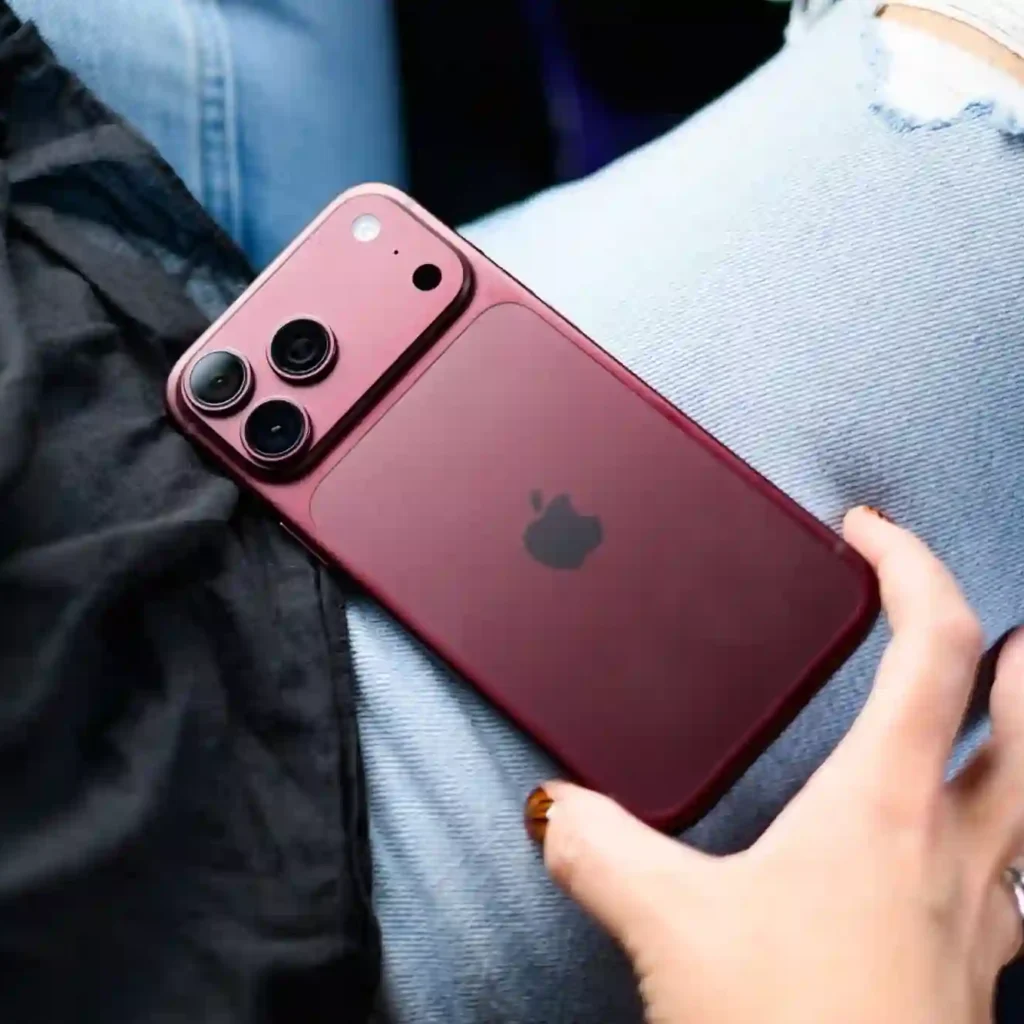
Are you actually getting the multi-day endurance promised by Apple, or is hidden background telemetry silently draining your battery percentage?
Modern smartphones pack intelligent background services that constantly refresh feeds, ping cell towers, and log sensor analytics.
While convenient, these automated processes force internal chips to run high power states constantly, draining your reserve power quietly.
Tame the Always-On Display and Wallpaper Rendering
The massive 6.9-inch OLED panel consumes substantial power even when resting on your desk.
Apple keeps wallpaper graphics visible on the lock screen by default, forcing pixels to stay lit.
Open Settings, tap Display & Brightness, and navigate directly into the Always On Display menu.
Toggle Show Wallpaper to the off position to convert the resting screen into pitch black.
Because OLED panels turn individual pixels off completely when displaying pure black, this switch cuts idle display power by nearly 40%.
Next, disable the Show Notifications switch within the very same menu to eliminate constant wakeups.
Rein in ProMotion Refresh Rates Intelligently
The flagship screen runs at an ultra-smooth 120Hz refresh rate, but high refresh rates inevitably drain power.
While variable refresh technology throttles frame rates dynamically, fast scrolling still draws peak energy.
Open Settings, select Accessibility, tap Motion, and toggle Limit Frame Rate to cap the display at 60Hz.
Users who love extreme fluidity do not have to leave this switch on permanently.
Instead, enabling this limit during long travel days instantly extends your usable runtime by multiple hours.
Eliminate Background App Refresh Everywhere
Countless social and streaming applications wake internal modems while resting quietly in your pocket.
Head to Settings, tap General, and select Background App Refresh.
Tap the top selector and switch it from Wi-Fi & Cellular Data directly to Off.
Apps still receive real-time push alerts through system push notification servers without draining continuous power.
This single change eliminates rogue background tasks from keeping system processors warm all afternoon.
Purge Unnecessary System Location Services
Dozens of native location daemons track your movements constantly to optimize system telemetry.
Open Settings, choose Privacy & Security, and tap Location Services.
Scroll down past your installed applications and select System Services at the bottom.
Disable Location-Based Alerts, Location-Based Suggestions, and iPhone Analytics immediately.
Furthermore, tap Significant Locations and toggle the daemon off entirely.
Your device will stop constantly writing GPS coordinates to flash storage, preserving both privacy and battery life.
Configure 5G Auto to Stop Modem Hunting
Locking your device to persistent 5G connectivity drains your battery rapidly in weak signal zones.
Modems ramp power output exponentially to latch onto mmWave or mid-band frequencies.
Go to Settings, tap Cellular, and choose Cellular Data Options.
Tap Voice & Data, then ensure you select 5G Auto rather than 5G On.
This smart data mode downgrades your connection to efficient LTE whenever top network speeds are not strictly required.
Silence Haptic Keyboard Feedback
The internal haptic vibration motor draws physical mechanical current with every single keypress.
If you send hundreds of messages daily, the physical motor runs hundreds of times.
Open Settings, tap Sounds & Haptics, and select Keyboard Feedback.
Toggle Haptic off to eliminate mechanical motor current draw entirely while typing.
Typing remains snappy and responsive while preserving measurable milliamp-hours throughout long typing sessions.
Switch Mail Delivery from Push to Fetch
Push email maintains an active, unbroken listening connection to remote corporate servers.
Every incoming spam message or promotional ping forces your modem awake immediately.
Head into Settings, tap Mail, and select Accounts.
Tap Fetch New Data at the bottom of the screen, and switch the primary toggle from Push to Fetch.
Scroll down and pick Every 30 Minutes or Hourly.
Your inbox syncs in scheduled batches, letting internal modem hardware enter deep sleep states.
Turn Off Background Apple Intelligence Telemetry
On-device neural processing requires high computational power across dedicated hardware cores.
Predictive app indexing and background suggestions constantly scan content across your file system.
Open Settings, select Siri & Apple Intelligence, and inspect background indexing toggles.
Disable suggestions within apps that you rarely use to stop unnecessary Neural Engine cycles.
This frees up system memory and keeps processors from generating unwanted idle heat.
Implement the 80% or 90% Charge Limit
Battery cells suffer the greatest chemical stress when pushed to absolute maximum saturation.
Charging all the way to 100% accelerates long-term degradation of lithium packs.
Open Settings, select Battery, and tap Charging.
Adjust the Charge Limit slider to 80% or 90% for daily usage.
This keeps voltage levels within a stable chemical window and protects total battery capacity over years of ownership.
Disable Automatic AirDrop and NameDrop Discovery
Short-range radios scan continuously when device-proximity discovery stays active.
Bringing devices together triggers animated pairing sequences that consume unexpected power.
Navigate to Settings, tap General, and select AirDrop.
Toggle Bringing Devices Together to off to prevent unwanted radio handshakes.
AirDrop still functions normally via your sharing menu without active proximity scanning.
| Hardware & Battery Metric | Official Specification / Benchmark Data |
|---|---|
| Processor | Apple A20 Pro (2nm Architecture) |
| Display | 6.9-inch Super Retina XDR OLED (1-120Hz ProMotion) |
| Battery Capacity | 5,391 mAh (Estimated 20.8 Wh pack) |
| Fast Charging | Up to 50% in 15 mins via 60W AVS Adapter |
| Wireless Charging | Up to 25W MagSafe and Qi2 standard |
| Weight | 249g / 8.78 oz |
| Base Price | $1,299 / €1,479 / £1,199 |
The Bigger Picture
Modern hardware efficiency gains often get absorbed by power-hungry artificial intelligence models and high-refresh screens.
While competitors pack massive silicon-carbon cells into rival flagships, Apple focuses heavily on fine-tuning thermal architecture and power management.
Taking manual control over these internal toggles restores your device to its true hardware potential, giving you unmatched real-world endurance without buying bulky battery packs.
Unfiltered Opinion
Buying a premium $1,299 flagship only to manually turn off its best features can feel absurd.
Yet, running out of battery before dinner ruins the entire user experience.
You do not need to cripple your device into a monochrome paperweight.
Applying fine-tuned adjustments to background services like location tracking and mail polling gives you major endurance gains without ruining screen smoothness.
Tweak the background bloat, leave the screen gorgeous, and enjoy a phone that actually lasts all night.
- K.K., Founder of TechKomo