If you still dig through settings menus to see swiped-away alerts, you are checking Android notification history completely wrong.
Most people waste precious seconds tapping through four sub-menus every single time they accidentally clear an urgent text.
Meanwhile, a hidden system trigger can retrieve any vanished alert in less than one second.
- Swipe-to-clear mistakes can be reversed instantly without diving deep into the device settings app.
- Stock Android and Pixel phones feature an invisible touch target right inside an empty notification tray.
- Samsung Galaxy users can unlock a persistent 30-day log using a native good-lock shortcut.
- Third-party launchers support a direct home-screen widget mapped straight to Android’s raw notification log.
Did you know that clearing your screen actually hides a secret clickable button in plain sight?
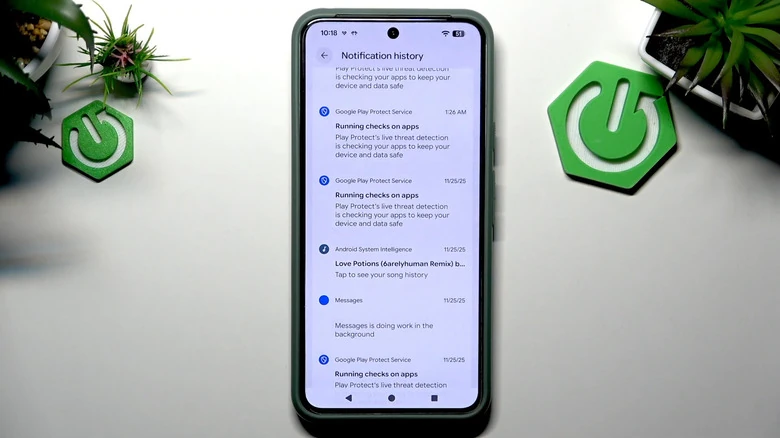
Android’s notification history serves as a digital safety net, storing the exact text, alert timestamps, and sender metadata for every ping you receive.
It acts like an airplane flight recorder for your push alerts, guaranteeing that accidental thumb swipes never delete critical verification codes or missed work messages.
Why Your Current Notification Retrieval Method Is Slow
Standard operating procedure on modern smartphones is clunky and unintuitive.
Normally, recovering an alert requires opening your app drawer, launching settings, tapping notifications, and then selecting notification history.
That multi-step journey takes anywhere between 4 to 8 seconds of manual thumb navigation.
Furthermore, if you never flipped the master toggle on beforehand, your phone saves absolutely nothing.
The default configuration keeps this tracking mechanism turned off out of the box to preserve minimal system resources.
Consequently, millions of users assume an accidentally cleared ping is lost forever to the digital void.
The Invisible Tap Trick Built Into Stock Android
You do not need to navigate full system menus when your notification shade is completely empty.
Instead, pull down your notification tray until you see the blank slate that displays “No notifications.”
Most owners believe that line is static system text.
Surprisingly, that plain “No notifications” label functions as a fully clickable invisible shortcut.
Tapping directly on the text transports you straight into the logging directory without clicking another menu.
When you do have active alerts, a tiny “History” button appears at the bottom-left corner of the shade.
Both entry points bypass the main configuration app entirely.
Creating a 1-Tap Home Screen Log Widget
Power users who run clean home screens can launch the entire interface with zero shade swipes.
First, press and hold any empty area on your home screen to bring up the configuration pop-up menu.
Next, select the widgets menu and scroll down until you locate the standard system settings widget.
Drag that settings shortcut icon onto your main desktop screen.
A nested sub-menu will instantly appear asking which specific deep-link page you want to assign.
Scroll through that alphabetical list and tap “Notification log.”
Now, a dedicated 1-tap app icon sits directly alongside your favorite daily apps.
This home-screen method gives you instantaneous access to incoming alerts, system warnings, and app package names.
The Samsung Galaxy Advantage: 30-Day Deep Archiving
Standard Android implementations keep alerts stored for exactly 24 hours before permanently purging the cache.
If an alert arrived yesterday morning, the native log clears the entry automatically.
Samsung Galaxy owners running modern One UI versions have access to a far superior alternative.
Through Samsung’s first-party customization suite, you can install the official companion utility named NotiStar.
Unlike the stock 24-hour window, NotiStar preserves a searchable catalog of every alert for up to 30 days.
Additionally, it allows keyword filtering so you can instantly search for banking codes or specific chat contacts.
You can even add a persistent swipe arrow directly onto your lock screen for instant recall.
| Operating System Interface | Native Retention Window | Fastest Access Method | Setup Complexity | Search Capability |
|---|---|---|---|---|
| Stock Android (Pixel / Motorola / Nothing) | 24 Hours | Tap “No notifications” text | Zero setup required | Basic scroll only |
| Samsung One UI (Standard Settings) | 24 Hours | Advanced settings menu | Manual toggle needed | None |
| Samsung One UI (With NotiStar) | 30 Days | Lock screen swipe handle | App store add-on | Full keyword search |
| Android Settings Widget | 24 Hours | Dedicated 1-tap home screen icon | 30-second setup | System package list |
The Bigger Picture: Notification Overload Across Ecosystems
Mobile platforms are battling intense notification clutter as apps push dozens of promotional alerts alongside genuine personal messages.
Apple still lacks a unified chronological history log for dismissed alerts once you clear Notification Center on iOS.
Google’s implementation of a native activity ledger gives Android a distinct functional advantage for power users.
However, burying these retrieval tools behind unlabelled text strings and hidden widgets shows how much work remains in mobile user interface design.
Until phone makers add a visible, permanently pinned button to the shade, mastering these shortcuts remains essential for everyday productivity.
Stop Scrolling Through Menus and Fix Your Workflow
Tapping through recursive system menus to recover a two-factor code makes zero sense in day-to-day use.
If your device runs clean software, turn on the history toggle right now and rely on the hidden empty-tray tap target.
If you carry a Samsung phone, bypass the native 24-hour limit immediately by configuring the extended storage utility.
A couple seconds spent setting up a direct home screen shortcut will permanently eliminate the frustration of fat-fingered dismissals.
- K.K., Founder of TechKomo